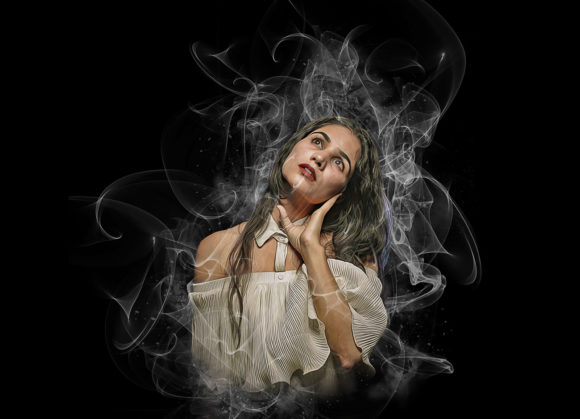
Master Realistic Smoke Photoshop Action
Digital art often hinges on atmosphere. A portrait can feel flat without depth, and a product shot might lack drama without environmental context. This is where a Realistic Smoke Photoshop Action becomes an invaluable tool in your creative toolkit. Rather than spending hours manually painting wisps of vapor or struggling with complex layer masks, this automated workflow allows you to transform ordinary photographs into extraordinary, atmospheric images with just a few clicks. The core promise is simple: non-destructive, customizable, and professional-grade smoke effects that integrate seamlessly with your existing composition.
Why Automation Matters in Digital Editing
For many creators, time is the most scarce resource. Whether you are a freelance photographer delivering edits under tight deadlines or a marketing manager needing social media assets by noon, efficiency is paramount. A pre-built action eliminates the repetitive steps of creating smoke textures, adjusting opacity, and color grading each element individually. By automating these processes, you ensure consistency across multiple images while freeing up mental energy for higher-level creative decisions, such as composition and storytelling.
However, "automation" does not mean "rigid." A high-quality action, like the one described here, offers flexibility. With ten different color options available at the touch of a button, you can match the smoke to the lighting of your scene—cool blues for a mysterious night shot or warm oranges for a fiery, intense look. This level of customization ensures that the effect enhances rather than overwhelms your original image.
Tailored Benefits for Different Creators
The value of a Realistic Smoke Photoshop Action shifts depending on who is using it. Understanding how different audiences interact with this tool can help you determine if it fits your specific workflow.
For Beginners and Hobbyists
If you are new to Photoshop, the interface can be intimidating. Layers, masks, and blending modes present a steep learning curve. For this group, the primary benefit is accessibility. An action lowers the barrier to entry, allowing beginners to achieve professional-looking results without mastering advanced techniques immediately. It serves as both a practical tool and an educational resource. By examining the organized layers generated by the action, novice users can learn how professionals structure their files, effectively reverse-engineering the process to improve their own skills over time.
For Professional Photographers and Retouchers
Experienced users prioritize reliability and non-destructive editing. They need tools that integrate smoothly into an established workflow without compromising image quality. The fact that this action is tested on various English versions of Photoshop—from CS5.5 to CC2020—provides confidence in its stability. Professionals appreciate the ability to tweak the result after the action has run. Since the effect is non-destructive, they can adjust opacity, change colors, or mask out areas where the smoke interferes with the subject’s face or key details. The inclusion of specific brushes further allows for manual refinements, ensuring the final output meets client standards.
For Marketers and Small Business Owners
In the world of e-commerce and digital marketing, visual distinctiveness drives engagement. A product photo surrounded by subtle, realistic smoke can convey luxury, mystery, or power, depending on the brand identity. For business owners without a dedicated design team, this action offers a cost-effective way to elevate product photography. Instead of hiring a special effects artist for every campaign, they can produce high-impact visuals in-house. The ease of use means that even those with limited technical expertise can create compelling ads for social media, websites, or email newsletters.
For Educators and Content Creators
Teachers and tutorial creators often need versatile assets to demonstrate concepts or create engaging thumbnails. A smoke action provides a quick way to add dynamic elements to static images, making educational materials more visually appealing. Furthermore, because the action includes a help file and PDF guide, educators can use it as part of a curriculum to teach students about automation, layer management, and digital compositing techniques.
Practical Workflow and Best Practices
To get the most out of your Realistic Smoke Photoshop Action, following the correct preparation steps is crucial. While the tool is designed to be user-friendly, the quality of the output depends heavily on the input. Here is a practical breakdown of how to prepare your canvas for optimal results.
- Canvas Preparation: Start by extracting your subject from the background if necessary. For the best resolution and detail, ensure your image is sized appropriately. The recommended dimensions are 2000x3000 pixels or 3000x2000 pixels at 72 DPI. If your image is too small, the smoke texture may appear pixelated; if it is too large, the action might take longer to process or lose intensity.
- Layer Setup: Open your photo in Photoshop. Create a new layer and rename it exactly “paint” in lowercase letters. This naming convention is critical because the action looks for this specific layer name to apply the effect. Using a soft brush, paint over the areas where you want the smoke to appear. Do not worry about precision at this stage; the action will handle the blending.
- Executing the Action: Once your "paint" layer is ready, hide its visibility (click the eye icon) but keep the layer selected. Open the Actions panel, load the ATN file, and hit play. The action will process the image, generating organized layers with the smoke effect applied.
- Customization: After the action completes, you can explore the ten different color options. Simply toggle the visibility of the color adjustment layers to find the hue that best complements your image. You can also adjust the opacity of the smoke layers to control the density of the effect.
Evaluating Quality and Compatibility
When choosing a digital asset, compatibility is a common concern. This action supports a wide range of Photoshop versions, including CS5.5, CS6, and all Creative Cloud versions up to CC2020. This broad support ensures that users with older hardware or software licenses can still benefit from the tool. However, it is important to note that the action is designed for the English version of Photoshop. Users with other language settings may need to switch their interface language temporarily or manually adjust layer names if the action fails to recognize them.
The inclusion of a comprehensive help file and PDF guide addresses potential troubleshooting issues. For users who encounter errors, these resources provide step-by-step instructions to resolve common problems, such as incorrect layer naming or canvas size mismatches. This support structure enhances the overall user experience, reducing frustration and ensuring a smoother workflow.
Making the Right Choice for Your Projects
Ultimately, deciding whether to incorporate a Realistic Smoke Photoshop Action into your workflow comes down to your specific needs. If you value speed, consistency, and ease of use, this tool is an excellent investment. It bridges the gap between amateur experimentation and professional execution, offering a reliable method to add atmospheric depth to your images.
Consider your current projects. Are you looking to enhance portraits with a moody aesthetic? Do you need to create eye-catching product shots for an online store? Or perhaps you are a student eager to learn about digital compositing? In each of these scenarios, the action provides a practical solution. By understanding the preparation requirements and leveraging the customization options, you can transform simple photos into captivating visual stories. The key is to view the action not just as a shortcut, but as a foundation upon which you can build your unique creative vision.