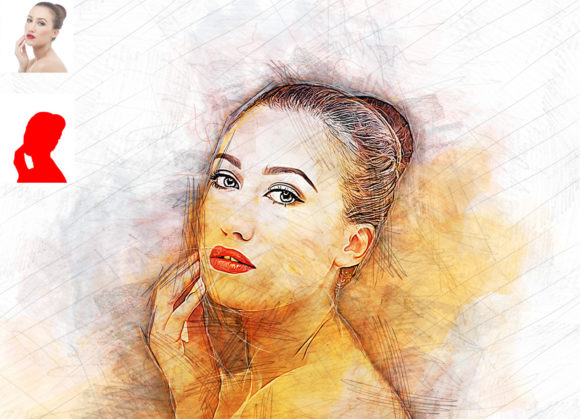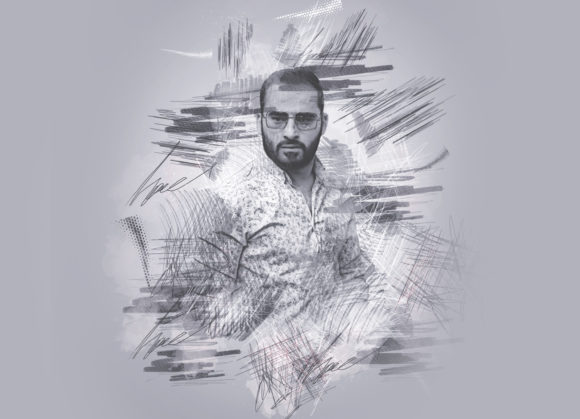
Quick Pencil Sketch Photoshop Action Guide
In the fast-paced world of digital content creation, visual distinction is paramount. Whether you are a graphic designer, a social media manager, or a hobbyist photographer, the ability to rapidly transform standard photography into stylized art can significantly enhance your workflow. The Quick Pencil Sketch Photoshop Action offers a streamlined solution for achieving this aesthetic without requiring hours of manual digital painting. This tool is designed to bridge the gap between traditional artistic techniques and modern digital efficiency, allowing users to convert ordinary photographs into extraordinary pencil-style illustrations with remarkable ease.
Understanding the Value of Automated Stylization
The primary appeal of using a dedicated action like the Quick Pencil Sketch Photoshop Action lies in its non-destructive nature and consistency. Manual sketching in Photoshop involves complex layering, blending modes, and filter applications that can be time-consuming and difficult to replicate exactly across multiple images. By automating these steps, the action ensures that every image receives the same high-quality treatment, which is crucial for maintaining brand consistency or creating cohesive series of artwork.
For professionals, time is a resource as valuable as creativity. An action that reduces a thirty-minute manual process to a few clicks allows creators to focus on higher-level design decisions rather than repetitive technical tasks. This efficiency is particularly beneficial for entrepreneurs and small business owners who need to produce large volumes of visual content for marketing campaigns, blog posts, or product presentations. The ability to generate professional-looking sketches quickly means you can test different visual styles and iterate on designs faster than ever before.
Customization and Creative Control
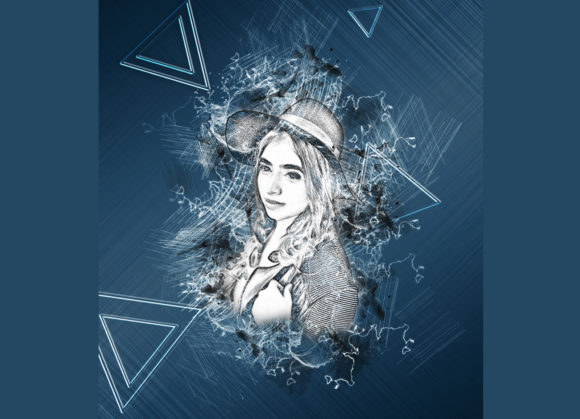
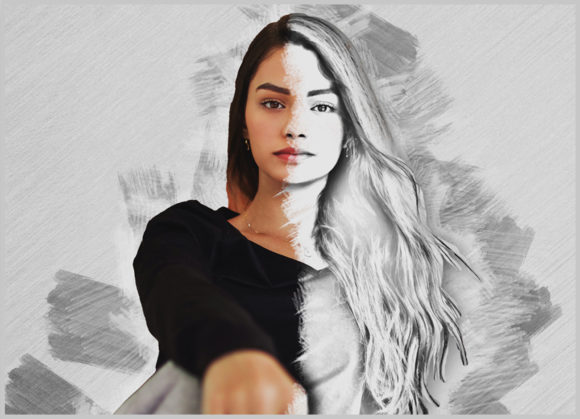
While automation provides speed, creative control ensures quality. One of the standout features of this professional pack is its flexibility. Users are not locked into a single, rigid output. Instead, the action provides 10 different color options, accessible through a simple interface. When you open the unviewed eye layers within the generated file, you can toggle between these variations to find the perfect tone for your specific image. This level of customization allows the tool to adapt to various moods, from stark black-and-white classical sketches to warmer, sepia-toned illustrations that evoke nostalgia.
The non-destructive workflow is another critical advantage. Because the action builds its effect using adjustable layers, you retain the ability to tweak opacity, blending modes, and contrast even after the action has run. This means you can fine-tune the intensity of the sketch effect to suit the lighting and composition of your original photo. For educators and publishers, this flexibility is invaluable, as it allows for precise adjustments to ensure text overlays remain readable against the sketched background.
Technical Compatibility and Requirements
To achieve the best results, it is essential to understand the technical environment in which the Quick Pencil Sketch Photoshop Action operates. This tool has been rigorously tested and is confirmed to work seamlessly with Photoshop English versions, specifically ranging from CS5.5 up to CC2020. This broad compatibility ensures that users with older software installations are not excluded, while those on the latest Creative Cloud updates can also benefit from its functionality. It is important to note that the action requires an English version of the software to function correctly, as it relies on specific layer names and menu commands that may differ in localized versions.
Preparation of your source image plays a significant role in the final output. For optimal performance, users should follow a specific preprocessing workflow. First, extract your canvas area by selecting the background image and using the crop tool to extend the sides if necessary. Resizing the image to approximately 3000x3000 pixels at 72 DPI is recommended. This resolution strikes a balance between detail retention and processing speed, ensuring that the sketch lines remain crisp without overwhelming your system’s resources.
Step-by-Step Implementation for Best Results
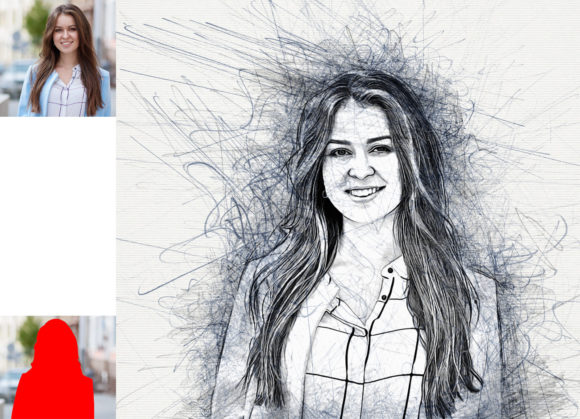
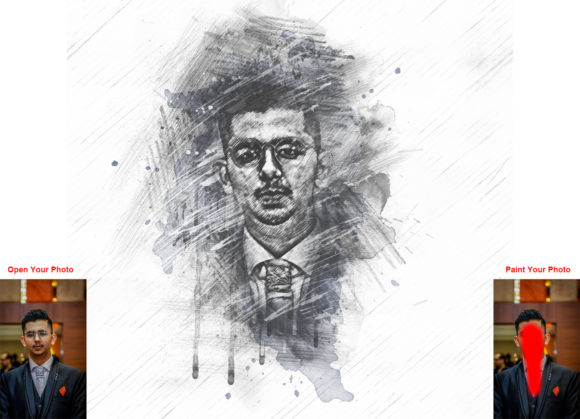
Using the action is straightforward, but following the correct sequence is vital for a glitch-free experience. Begin by opening your prepared photo in Photoshop. Create a new layer and rename it exactly as “paint” in lowercase letters. This naming convention is crucial because the action scripts look for this specific layer to apply the brush strokes and effects. Using a brush of your choice, paint over the areas of the image you wish to emphasize or transform. This step allows you to guide the action, telling it where to focus the sketch details.
Once you have painted your guide layer, hide the visibility of the “paint” layer by clicking the eye icon, but keep the layer selected. Then, simply click the play button on the action panel. The script will automatically process the image, utilizing the included brushes and filters to generate the pencil sketch effect. The result is a organized set of layers that you can further refine. This method empowers users to direct the artistic outcome, ensuring that the final sketch highlights the most important elements of the photograph.
Who Benefits Most from This Tool?
The versatility of the Quick Pencil Sketch Photoshop Action makes it suitable for a wide range of users. Freelancers and marketers can use it to create unique featured images for blogs and social media posts, helping their content stand out in crowded feeds. Photographers can offer sketch-style prints as additional products to their clients, adding value to their services without needing advanced drawing skills. Educators and publishers may find it useful for creating engaging visual aids that soften the realism of photos, making them more approachable for instructional materials.
Hobbyists and creative enthusiasts will also appreciate the accessibility of the tool. It lowers the barrier to entry for digital art, allowing individuals to experiment with artistic styles without years of training. The included help files, PDF guides, and user manuals ensure that even beginners can install and use the action with confidence. The package includes not only the Photoshop ATN file but also the necessary brushes, ensuring a complete and self-contained solution.
Considerations for Professional Use
While the action delivers high-quality results, it is important to recognize its role as a facilitator rather than a replacement for artistic judgment. The effectiveness of the sketch depends heavily on the quality of the source image and the initial preparation steps. Images with poor lighting or low contrast may require additional adjustment before running the action. Furthermore, while the 10 color options provide variety, users seeking highly specific custom hues may need to apply additional color grading layers post-action.
Ultimately, the Quick Pencil Sketch Photoshop Action is a powerful asset for anyone looking to enhance their digital toolkit. It combines efficiency with creative flexibility, offering a reliable way to produce professional-grade pencil sketches. By understanding its requirements and leveraging its customizable features, users can transform their visual content, saving time while elevating the artistic quality of their work. Whether for commercial projects or personal expression, this action provides a practical pathway to achieving sophisticated, hand-drawn aesthetics in a digital format.