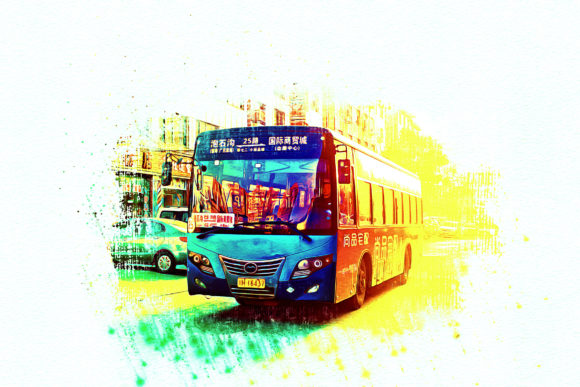
Master Grunge Manipulation in Seconds
There is a distinct moment in the creative process when a polished, high-resolution photograph feels too sterile. It lacks texture, history, and grit. This is where Grunge Manipulation becomes an essential tool in your digital arsenal. Rather than spending hours manually painting distress marks, adjusting curves, and layering noise to achieve that raw, urban aesthetic, you can now automate the heavy lifting. This Photoshop Action is designed to transform clean images into textured, atmospheric visuals with just a couple of clicks, saving you an immense amount of work per photo while maintaining professional quality.
The Visual Appeal of Digital Grit
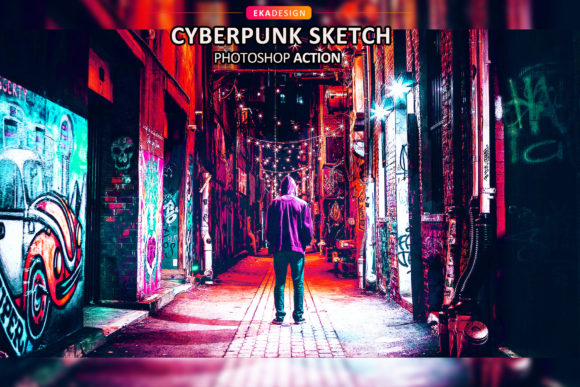
Grunge aesthetics are not merely about making things look old or dirty; they are about adding character and emotional weight to an image. In the context of brand identity and editorial design, this style communicates authenticity, rebellion, and resilience. When you apply Grunge Manipulation to your work, you are introducing a layer of visual storytelling that flat, vector-based graphics often miss. The effect typically involves cracked surfaces, faded tones, dust overlays, and irregular edges that mimic the wear and tear of physical media.
This style works exceptionally well for projects that need to stand out in a saturated market. Whether you are designing album covers, streetwear marketing materials, or edgy social media graphics, the grunge look captures attention by breaking the monotony of perfect digital symmetry. It appeals to audiences who value craftsmanship and raw expression over corporate polish. By integrating these textures, you elevate a standard photograph into a piece of creative font-adjacent art, where the image itself acts as a bold statement.
Streamlining Your Workflow with Smart Actions
The primary value proposition of this tool is efficiency without sacrificing control. Many designers hesitate to use automated actions because they fear losing the ability to tweak specific details. However, this Grunge Manipulation Photoshop Action is built with a sophisticated layer organization system. Once the action runs, it does not flatten your image. Instead, it generates a structured stack of adjustment layers, masks, and texture overlays.
This non-destructive workflow allows you to customize the intensity of the grunge effect. You might want to reduce the opacity of a scratch overlay or adjust the color balance of the distressed areas to better match your logo design palette. Because the layers remain organized, you can quickly isolate elements and make precise edits. This feature is particularly valuable for entrepreneurs and small business owners who manage their own content creation. It reduces the time spent on repetitive tasks, allowing you to focus on strategy and concept development rather than pixel-pushing.
To ensure the best results, technical specifications matter. The action is optimized for high-resolution inputs. It is strongly recommended to use images with a resolution of at least 3000px by 3500px at 300 dpi. Lower resolution images may result in pixelated textures or unclear distress marks, undermining the professional look you are aiming for. Additionally, please note that this action requires the English version of Adobe Photoshop CS5 or later. Currently, other language versions are not supported due to the way the action references layer names and menu commands.
Versatility Across Design Disciplines
While grunge textures are often associated with music and fashion, their application extends far beyond these niches. In packaging design, a subtle grunge overlay can give a product label a handmade, artisanal feel, suggesting quality and tradition. For web design, using grunge elements in hero sections or background textures can create a immersive user experience that feels tactile and grounded. Even in corporate presentations, a touch of texture can break up white space and add visual interest to data-heavy slides.
Consider the impact on font pairing and typography. When you pair a clean sans serif font or a classic serif font with a grunge-treated background, the contrast enhances readability and visual hierarchy. The roughness of the background makes the crisp lines of the typeface pop, guiding the viewer’s eye to the key message. This technique is equally effective with script font or handwritten font styles, creating a dynamic interplay between organic human touch and digital precision. It transforms standard design assets into cohesive brand narratives.
For marketers and content creators, consistency is key. Using a standardized action ensures that every image in a campaign shares the same textural DNA. This consistency strengthens brand perception and recognition. Whether you are producing social media graphics for Instagram or large-format prints for an event, the uniform application of Grunge Manipulation ties disparate elements together into a unified visual language.
Practical Tips for Best Results
To get the most out of this tool, start with strong source material. High-contrast images with clear subjects work best, as the grunge effects tend to soften details. If your original photo is already low-contrast, consider boosting the blacks and whites before running the action. This provides a stronger foundation for the textures to adhere to visually.
- Check Your Software Version: Ensure you are running the English version of Photoshop CS5 or newer. This is a strict requirement for the action to execute correctly.
- Resolution Matters: Always aim for 300 dpi and dimensions around 3000px x 3500px. This ensures that the texture details remain sharp and do not appear muddy when scaled.
- Explore the Layers: Do not just accept the default output. Dive into the generated layer groups. Toggle visibility on and off to see how each element contributes to the final look. This is where you can fine-tune the effect to suit your specific project needs.
- Experiment with Blending Modes: The action uses standard blending modes, but you can experiment with changing them to Overlay, Soft Light, or Multiply to achieve different levels of intensity and color interaction.
The file package includes everything you need to start immediately: the main Action file (ATN), custom Brushes (ABR) for manual touch-ups, and Patterns (PAT) for additional texture options. A helpful Notepad file is also included to guide you through installation and usage. Note that preview images and mockups are not included, so you will need to supply your own photos to test the effects.
Incorporating Grunge Manipulation into your workflow is not just about applying a filter; it is about adopting a more efficient, professional approach to texture and atmosphere. It allows you to produce high-end, editorial-quality visuals without the steep learning curve or time investment traditionally associated with complex photo manipulation. Whether you are a seasoned designer looking to speed up your process or a hobbyist eager to elevate your creative projects, this tool offers a practical, powerful solution for adding depth and character to your digital imagery.