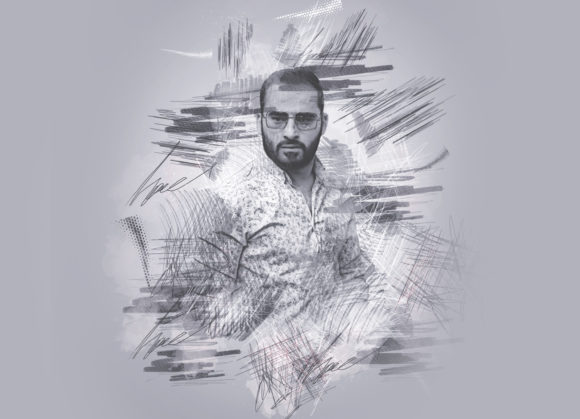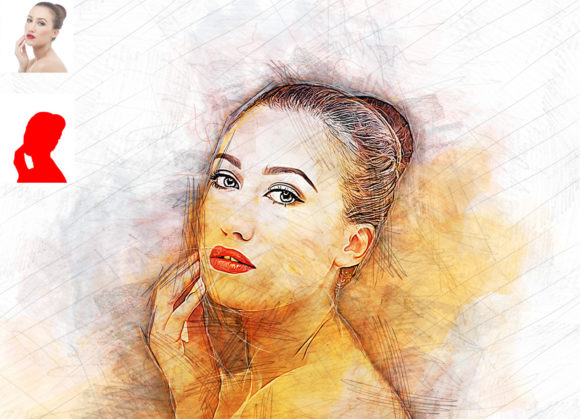
Transform Your Photos into Art: A Complete Guide to the Pen Sketch Photoshop Action
In the digital age, the line between photography and traditional illustration has become increasingly blurred. For designers, photographers, and creative enthusiasts, the ability to convert a standard photograph into a hand-drawn aesthetic is a highly sought-after skill. While manual sketching requires years of practice, modern technology offers a bridge through tools like the Pen Sketch Photoshop Action. This powerful automation tool allows users to transform their photos into realistic pen sketches with remarkable ease, offering a non-destructive workflow that preserves the integrity of the original image.
Whether you are a professional graphic designer looking to speed up your workflow or a hobbyist eager to add an artistic touch to your social media posts, understanding how this action works can significantly enhance your creative output. This article explores the functionality, benefits, and practical application of the Pen Sketch Photoshop Action, helping you unlock its full potential.
What Is a Pen Sketch Photoshop Action?
A Photoshop Action is essentially a recorded sequence of commands—such as menu selections, filter applications, and layer adjustments—that can be played back on a single file or a batch of files. The Pen Sketch Photoshop Action is a specialized set of these recordings designed specifically to mimic the texture, line weight, and shading of traditional ink drawings.
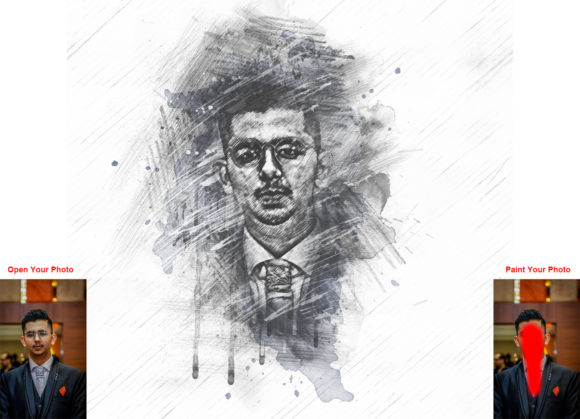
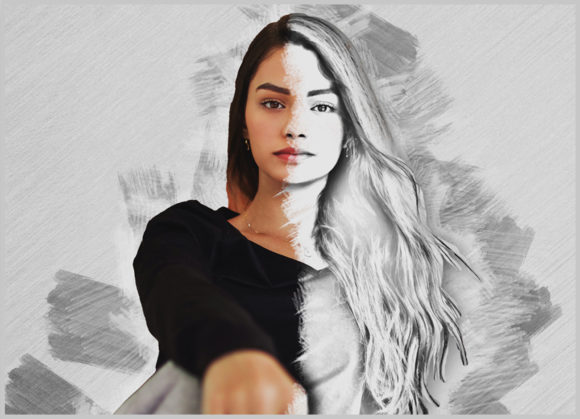
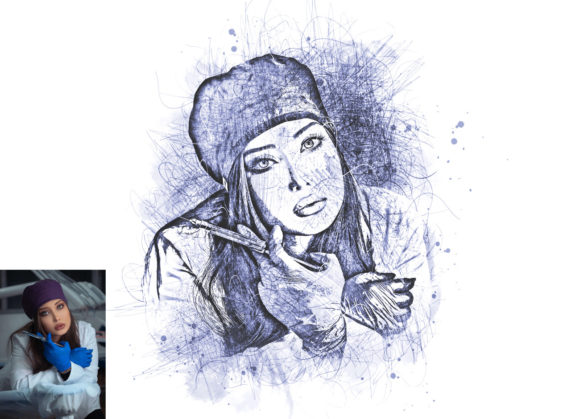
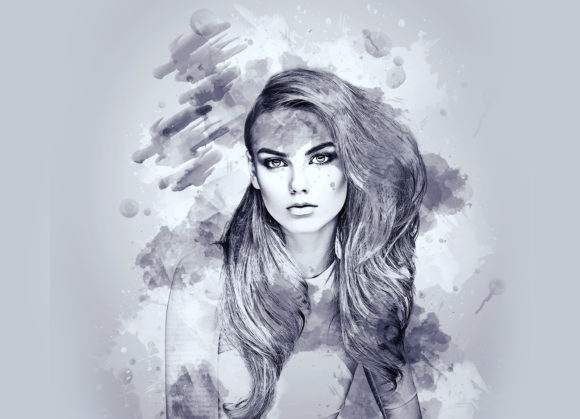
Unlike simple filters that apply a flat effect over an image, this action utilizes complex algorithms involving edge detection, contrast adjustment, and texture overlaying. The result is a dynamic interpretation of your photo that looks as though it were drawn by hand using a fine-point pen. Because it is built for Adobe Photoshop, it leverages the software’s robust engine to ensure high-quality results that maintain detail and depth.
The Significance of Non-Destructive Editing
One of the most critical features of this specific action is its non-destructive nature. In traditional digital editing, applying heavy filters can permanently alter pixel data, making it difficult to revert changes or adjust the intensity later. However, this action creates separate layers for effects, adjustments, and textures. This means you can toggle visibility, adjust opacity, or modify blending modes at any time without losing the original photograph. For professionals, this flexibility is invaluable, allowing for iterative design processes and client revisions without starting from scratch.
Compatibility and Technical Requirements
Before diving into the creative process, it is essential to ensure your software environment is compatible. The Pen Sketch Photoshop Action is designed to work seamlessly across a wide range of Adobe Photoshop versions. It supports:
- Photoshop CS5, CS5.5, and CS6
- Photoshop CC, CC2014, CC2015.5
- Photoshop CC2017, CC2018, CC2019, and CC2020
The action was developed and tested primarily on Photoshop CC2020 (English Version), ensuring optimal performance on modern systems. However, its backward compatibility makes it accessible to users who may not have the latest subscription updates. It is important to note that the interface and instructions are tailored for the English version of the software, so users with other language settings may need to adjust menu navigation accordingly.
Step-by-Step Guide to Using the Action
Using the Pen Sketch Photoshop Action is straightforward, but following the correct sequence is vital for achieving the best results. The process is designed to be user-friendly, even for those with limited technical expertise. Here is a logical breakdown of how to apply the effect:
- Prepare Your Image: Start by opening the photo you wish to transform. For the highest quality output, it is recommended to use images with a resolution of approximately 2000x3000 pixels. Higher resolution ensures that the fine details of the pen strokes remain crisp and clear.
- Create the Brush Layer: Create a new layer above your background image. Crucially, you must rename this layer to "brush" in lowercase letters. This naming convention is not arbitrary; the action script looks for this specific layer name to apply the masking and brushing effects correctly.
- Define the Focus Area: Select a soft brush tool and paint over the areas of the image you want to emphasize in the sketch. This step allows you to control where the sketch effect is most prominent. For example, if you are converting a portrait, you might brush over the face and hands while leaving the background less defined.
- Execute the Action: Once you have finished brushing, hide the "brush" layer by clicking the eye icon. Ensure your background layer is selected, then open the Actions panel and click the Play button. The action will automatically process the image, applying the pen sketch effect based on your brush inputs.
Customization and Creative Control
While the action provides an instant transformation, its true power lies in its customizability. Upon completing the action, you will find a group of layers labeled "unviewed eye" or similar, containing 10 different color options. This feature allows you to change the tone of the sketch instantly, ranging from classic black ink to sepia, blue, or other artistic hues.
Furthermore, the package includes custom brushes and patterns that integrate with the action. You can easily change the brush color or swap out patterns to alter the texture of the sketch. This level of control ensures that no two sketches look exactly alike, allowing for a personalized artistic signature.
Understanding the File Package
When you download the Pen Sketch Photoshop Action, you receive a comprehensive toolkit designed to support your workflow. The package typically includes:
- ATN File: The core action file that runs the automation.
- Custom Brushes: Specialized brush presets that mimic real pen tips.
- Patterns: Texture overlays that add paper grain or ink splatter effects.
- PDF Read Me First: Essential instructions and troubleshooting tips.
- Help File: Detailed documentation for advanced customization.
It is important to note that preview images are not included in the download package. These are usually displayed on the product page for marketing purposes. Users should rely on the provided help files and their own experimentation to gauge the potential outcomes.
Practical Applications in Modern Creativity
The versatility of the Pen Sketch Photoshop Action makes it relevant across various industries and creative pursuits. In marketing and advertising, sketch-style images can evoke a sense of nostalgia, authenticity, or craftsmanship, distinguishing brands from competitors who rely solely on polished photography. For educational materials, converting diagrams or historical photos into sketches can help focus attention on structural details rather than distracting colors.
In the realm of personal art and social media, this tool allows influencers and content creators to produce unique visual content rapidly. Instead of spending hours drawing by hand, they can generate multiple variations of a photo in minutes, testing different styles and colors to see what resonates with their audience.
Common Misconceptions and Tips for Success
A common misunderstanding is that actions replace the need for artistic judgment. While the automation handles the technical heavy lifting, the quality of the output still depends on the input. Using low-resolution images or poorly lit photos will result in a muddy or unclear sketch. Additionally, ignoring the instruction to name the layer "brush" in lowercase is a frequent error that causes the action to fail.
To maximize effectiveness, always start with a high-contrast, well-lit photograph. Experiment with the soft brush step to guide the viewer’s eye. Remember, the action is a tool to assist your creativity, not replace it. By combining the efficiency of automation with your unique artistic vision, you can produce stunning pen sketch artworks that stand out in a digital world saturated with standard photography.
In conclusion, the Pen Sketch Photoshop Action is an indispensable resource for anyone looking to blend traditional artistic aesthetics with modern digital efficiency. Its non-destructive workflow, broad compatibility, and deep customization options make it a valuable addition to any designer’s toolkit. By mastering this tool, you open up new avenues for expression, allowing you to transform ordinary moments into extraordinary works of art.