Mastering the Digital Pencil: A Practical Guide to the Sketch Effect Photoshop Action
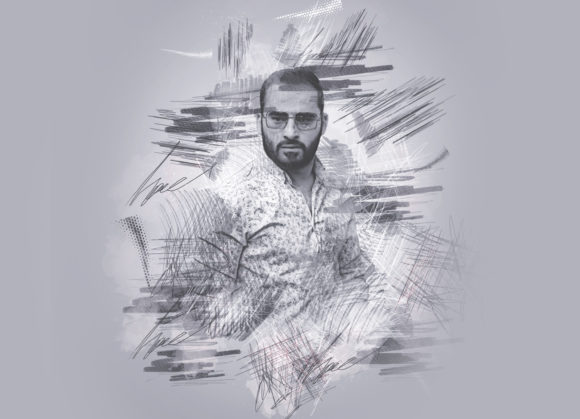
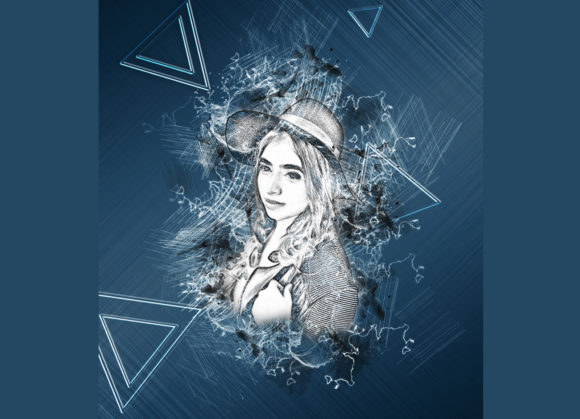
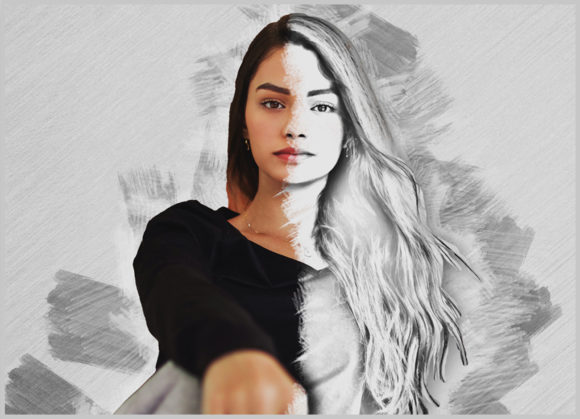
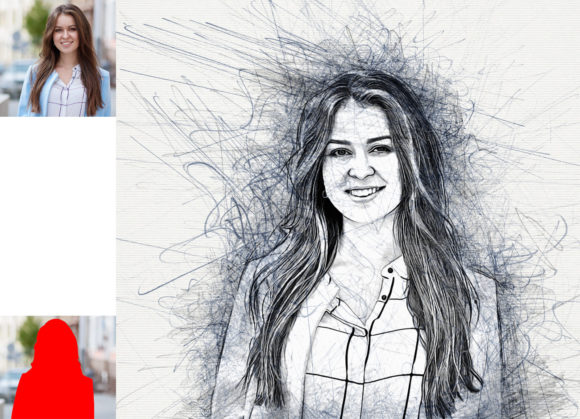
Transforming a standard photograph into a hand-drawn illustration is a technique that has long fascinated digital artists and photographers alike. While manual sketching requires years of practice, modern software tools offer a bridge between photography and traditional art. The Sketch Effect Photoshop Action represents one such tool, designed to automate the complex process of converting pixel-based images into realistic pencil or charcoal-style sketches. For professionals and hobbyists evaluating their workflow options, understanding the capabilities, limitations, and specific use cases of this action is essential for making an informed decision.
Understanding the Core Functionality
At its heart, this action is a scripted sequence of commands within Adobe Photoshop that applies filters, adjustments, and layer styles to mimic the texture and line work of a physical sketch. Unlike simple filter overlays that often look flat or artificial, this specific action is engineered to create a non-destructive effect. This means the original image data remains intact, allowing users to tweak parameters or revert changes without compromising quality.
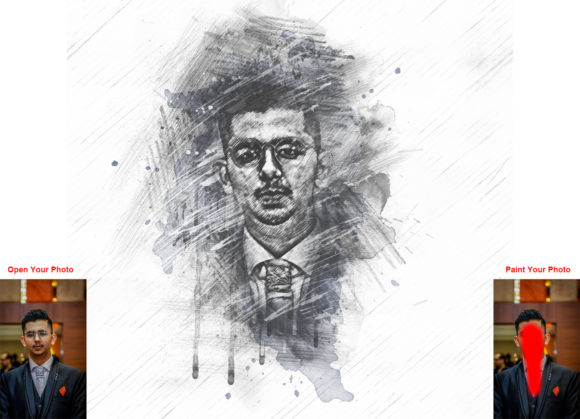
The workflow is structured around user input to ensure the result is not generic. The process begins with opening a photo and creating a new layer explicitly named “brush” in lowercase. By using a soft brush on this layer, the user defines which areas of the image should retain more detail or contrast. This step is crucial because it gives the operator control over the focal points of the sketch, ensuring that important features like eyes or architectural details are not lost in the stylization. Once the brushing is complete and the layer visibility is toggled off, the action is executed, processing the background layer according to the predefined algorithm.
Evaluation of Customization and Flexibility
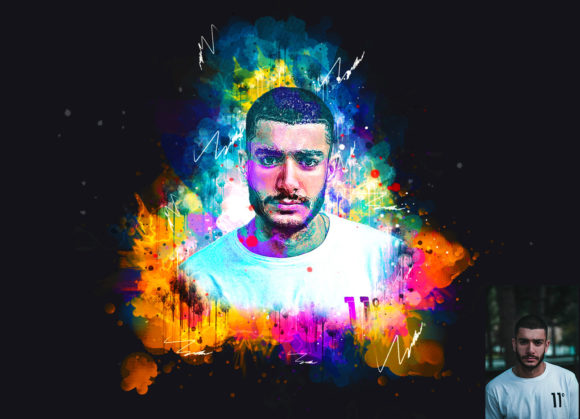
One of the primary factors when comparing digital art tools is the degree of customization available. The Sketch Effect Photoshop Action offers ten different color options, accessible via an "unviewed eye" layer mechanism. This feature allows users to experiment with various tonal ranges, from stark black-and-white charcoal looks to softer, sepia-toned pencil drawings. The ability to change brush colors easily further enhances this flexibility, enabling artists to match the sketch style to specific branding guidelines or artistic visions.
However, it is important to note the technical requirements. The action is compatible with a wide range of Adobe Photoshop versions, including CS5, CS5.5, CS6, and the Creative Cloud series from CC2014 through CC2020. Users operating on older software may find compatibility issues, while those on the very latest releases should verify backward compatibility, although most recent actions function well in newer environments. The requirement for the English version of the software is a notable constraint; users with localized interfaces may need to switch their language settings temporarily to ensure the action scripts execute correctly, as layer names and menu commands must match exactly.
Comparing Automated Actions vs. Manual Techniques
When deciding whether to use an automated action or pursue manual sketching techniques, the tradeoff largely centers on time versus control. Manual conversion involves duplicating layers, applying Gaussian blurs, using color dodge blending modes, and manually enhancing edges with sharpening filters. This method offers ultimate control but can take thirty minutes to several hours per image, depending on complexity.
In contrast, the Sketch Effect Photoshop Action reduces this process to seconds. For high-volume projects, such as creating consistent social media content, wedding photography previews, or architectural concept presentations, this efficiency is invaluable. The action provides a standardized baseline that ensures consistency across a batch of images. However, the limitation lies in the nuance. An automated script cannot interpret the emotional weight of a portrait or the structural importance of a building corner with the same intuition as a human artist. Therefore, while the action provides a high-quality result, it often serves best as a starting point that may require minor manual refinements for premium commercial work.
Technical Specifications and Best Practices
To achieve optimal results, the resolution and dimensions of the source image play a critical role. The recommended image size is 2000x3000 pixels. Using images significantly smaller than this may result in pixelation or loss of detail when the sketch filters are applied, while excessively large files may slow down processing without adding visible benefit. The action includes several supporting files: the ATN file itself, custom brushes, patterns, a PDF "Read Me First" guide, and a help file. These resources are integral to the non-destructive workflow, providing the necessary assets to replicate the intended texture.
It is also worth mentioning what is not included. Preview images are not part of the download package, meaning users must rely on the developer’s external portfolio or demo videos to gauge the aesthetic before purchase. This lack of immediate visual proof within the file structure places a higher burden on the user to trust the product description and reviews.
Identifying the Right Use Cases
The Sketch Effect Photoshop Action is particularly well-suited for specific scenarios. Graphic designers working on retro-themed posters, real estate agents looking to present property sketches, and photographers offering artistic add-ons to their clients will find significant value here. The non-destructive nature of the workflow allows for easy client revisions; if a client prefers a darker shade or a different brush texture, these adjustments can be made quickly without restarting the entire process.
Conversely, this tool may not be the ideal choice for fine art purists who require absolute control over every stroke, or for users who do not have access to Adobe Photoshop. Those using alternative software like GIMP, Affinity Photo, or Procreate will need to seek platform-specific solutions or manual tutorials, as ATN files are exclusive to the Adobe ecosystem. Additionally, users seeking a fully automatic "one-click" solution without any preparatory steps (such as naming the brush layer) may find the initial setup slightly cumbersome, although the learning curve is minimal.
Making an Informed Decision
Choosing the right tool for digital sketching depends on balancing efficiency, quality, and technical compatibility. The Sketch Effect Photoshop Action stands out for its ease of customization, broad version support, and non-destructive workflow. It bridges the gap between professional manual techniques and quick automated filters, offering a middle ground that is both practical and aesthetically pleasing.
For users already embedded in the Adobe Creative Cloud ecosystem, particularly those working with English-language interfaces and standard high-resolution images, this action offers a robust solution for rapid stylization. However, it is essential to approach it with realistic expectations: it is a powerful assistant, not a replacement for artistic judgment. By understanding its strengths in batch processing and consistency, and acknowledging its limitations in nuanced interpretation, users can effectively integrate this tool into their creative arsenal. Whether for personal projects or professional deliverables, evaluating the specific needs of your workflow against the features provided will ensure that this action serves as a valuable resource rather than just another plugin in the folder.